Tuesday, 14 July 2015

PACKING

PACKING

This option is used to make different quantity for the stock item.
If a trader purchase goods from supplier and wants to sale it to his debtor then he creates units of different quantity for the stock item.

Example:-

Tata Company purchased 50 kg of Tata salt for Rs. 25 per kg. The company packed it into 6 packets of 5 kg each for Rs. 125 per packet and 10 packets of 2 kg each for Rs. 150 per packet. The company sold 6 packet of 5 kg salt.
Maintain the above transactions.

To maintain:-

First of all create a company and then create ledger as follow:-


Path for ledger creation: - G.O.T. (Gateway of Tally)--> Accounts Info--> Ledger--> Create (Single).


Now create stock master as follow:-

To Create Stock Group: - G.O.T. (Gateway of Tally)--> Inventory Info--> Stock Group--> Create.


Create units of measure as follow:-

To Create Units of Measure: - G.O.T. (Gateway of Tally)--> Inventory Info--> Units of Measure--> Create.

Here create units by using simple creation:-


Now create units by using compound creation:-


And now create stock item:-

To Create Stock Item: - G.O.T. (Gateway of Tally)--> Inventory Info--> Stock Item --> Create.


Now do voucher entry as follow:-

Path for voucher creation: - G.O.T. (Gateway of Tally)--> Inventory Voucher--> Press F9 (Purchase Voucher).


Press “Alt + F7” to open Stock Journal Voucher.


Now view the summary:-

Path for view stock summary: - G.O.T. (Gateway of Tally)--> Stock Summary.


Now do Sales Voucher entry:-

Path for voucher creation: - G.O.T. (Gateway of Tally)--> Inventory Voucher--> Press F8 (Sales Voucher).


Now view the summary:-

Path for view stock summary: - G.O.T. (Gateway of Tally)--> Stock Summary.


Press “Alt + F1” for more details.

Read More...

Monday, 13 July 2015

ORDER PROCESSING

ORDER PROCESSING

It is the process by which a trader purchase/ sale goods from/ to any party.

There are two types of order processing:-

     1)   Purchase Order Processing: - This process is used to purchase goods. It consists following facts:-
           a)    Purchase Order (Alt + F4)
           b)    Receipt Note (Alt + F9)
           c)     Rejection Out (Alt + F6)
           d)    Purchase (F9)

     2)   Sales Order Processing: - This process is used to sale goods to any party. It consists following facts:-
            a)    Sales Order (Alt + F5)
            b)    Delivery Note (Alt + F8)
            c)     Rejection In (Ctrl + F6)
            d)    Sales (F8)

Example:-

A company purchased 50 pieces of HCL Computer from ABC Company on 1.4.2014, but received only 40 pieces of Computer. Due to damage, 10 pieces returned to his supplier and finally received only 30 pieces of computer.
Maintain the above transactions.

To maintain:-

Create a company and then activate purchase and sales order as follow:-


Path for Purchase and Sales Order Activation: - G.O.T. (Gateway of Tally)--> Press F11 (Company Features)--> Press F2 (Inventory Features).


After that create stock master:-

To Create Stock Group: - G.O.T. (Gateway of Tally)--> Inventory Info--> Stock Group--> Create.


To Create Stock Item: - G.O.T. (Gateway of Tally)--> Inventory Info--> Stock Item--> Create.


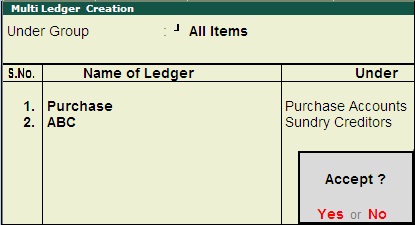
Now create multiple ledger as follow:-

Path for ledger creation: - G.O.T. (Gateway of Tally)--> Accounts Info--> Ledger--> Create (Multiple).


And then do voucher entry:-

Path for voucher creation: - G.O.T. (Gateway of Tally)--> Inventory Voucher--> Press Alt + F4 (Purchase Order).


After that, a box will be open, fill it as follow:-


And now accept the voucher by pressing “y” or “enter” key.


Press “Alt + F9” to open Receipt Note.


A box will open after pressing “enter” on HCL, fill it as follow:-


Now accept the voucher by pressing “y” or “enter” key.


Now press “Alt + F6” to open Rejection Out.


A box will open after pressing “enter” on HCL, fill it as follow:-


Accept the voucher by pressing “y” or “enter” key.


Goods received 40 pieces, rejected 10 pieces so the actual purchase is 30 pieces. Then we will show only 30 pieces in purchase voucher.

Press F9 to open Purchase Voucher.


Press “enter” on HCL and fill the form as follow:-


Press “enter” on “End of List” and again press “enter” more times.


Bill Wise Detail form will open, fill it as follow:-


Accept the voucher by pressing “y” or “enter” key.


Now you can see purchase order outstanding:-

Path for view Purchase Order Outstanding: - G.O.T. (Gateway of Tally)--> Display--> Statement of Inventory--> Purchase Order Outstanding--> Stock Item--> HCL.


Press “Alt + F1” for more details.
Read More...

Sunday, 12 July 2015

PHYSICAL STOCK REGISTER

PHYSICAL STOCK REGISTER

Physical Stock Register is used to know the actual stock .
Shortcut key of this voucher is Alt + F10.

Example:-

XYZ Company purchased 100 kg Basmati Rice for Rs. 60 per kg. The company sold 10 kg Rice for Rs. 70 per kg.
Record this transaction.

To maintain:-

Create a company and then create stock master as follow:-


To Create Stock Group: - G.O.T. (Gateway of Tally)--> Inventory Info--> Stock Group--> Create.


To Create Stock Item: - G.O.T. (Gateway of Tally)--> Inventory Info--> Stock Item--> Create.


And then create ledger as follow:-

Path for ledger creation: - G.O.T. (Gateway of Tally)--> Accounts Info--> Ledger--> Create (Single).


Now do voucher entry:-

Path for voucher creation: - G.O.T. (Gateway of Tally)--> Inventory Voucher--> Press F9 (Purchase Voucher).


Now see the stock summary as follow:-

Path for view stock summary:- G.O.T. (Gateway of Tally)--> Stock Summary.


Now do sales voucher entry:-

Path for voucher creation: - G.O.T. (Gateway of Tally)--> Inventory Voucher--> Press F8 (Sales Voucher).


And then do physical stock voucher entry:-

Path for voucher creation: - G.O.T. (Gateway of Tally)--> Inventory Voucher--> Press Alt + F10 (Physical Stock Voucher).


Now see the stock summary:-

Path for view stock summary:- G.O.T. (Gateway of Tally)--> Stock Summary.


For more details press “Alt + F1”.
Read More...

Friday, 10 July 2015

PRICE LIST

PRICE LIST

This option is used by a businessman to specify rate and discount of stock item for its Wholesaler/Retailer.

Example:-

Parker Company purchased 500 pieces of parker pen for Rs. 15 each. The company sold 427 pieces of pen on following conditions:-
  Ø Less than 10 pieces for Rs. 18.
  Ø More than 10 pieces and less than 50 pieces for Rs. 17 on 1% discount.
  Ø More than 50 pieces and less than 100 pieces for Rs. 16 on 2% discount.

 Record the above transactions.

To maintain:-

Create a company and then activate separate discount column and price level as follow:-

To Activate Separate Discount Column and Price Level: - G.O.T. (Gateway of Tally)--> press F11 (Company Features)--> press F2 (Inventory Features).


After pressing “enter” the box given below will be appear as follow:-


Fill it as follow:-

And accept the company features by pressing “enter” key:-


Now accept it by pressing “y” or “enter” key.

Create stock master as follow:-

To Create Stock Group: - G.O.T. (Gateway of Tally)--> Inventory Info--> Stock Group--> Create.


After that, create stock item:-

To Create Stock Item: - G.O.T. (Gateway of Tally)--> Inventory Info--> Stock Item--> Create.


Now create price list as follow:-

Path for Price List Creation: - G.O.T. (Gateway of Tally)--> Inventory Info-->Price List--> Create.

After pressing “enter” on create a box will be open, fill the box as follow:-


And then press “enter” and fill it as given below:


After that press “y” or “enter” to accept it.

And now create ledger and do voucher entry:-

Path for ledger creation: - G.O.T. (Gateway of Tally)--> Accounts Info--> Ledger--> Create (Single).


Now do voucher entry:-

First, do purchase voucher entry:

Path for voucher creation: - G.O.T. (Gateway of Tally)--> Inventory Voucher--> Press F9 (Purchase Voucher).


Now do sales voucher entry:-

Path for voucher creation: - G.O.T. (Gateway of Tally)--> Inventory Voucher--> Press F8 (Sales Voucher).


All the voucher entries have been done.


Press “Alt + F1” for more information.
Read More...