Monday, 7 September 2015

INTER STATE TRANSACTION

INTER STATE TRANSACTION

When a dealer purchase or sales goods to other state then it is called Inter State Transaction.

This time the dealer has to pay CST (Central Sales Tax). CST is a tax on sales of goods levied (deposited) by the central government. It is applicable only in the case of inter state transaction.

Inter State Purchase: - When a dealer purchase goods from other state, then it is called inter state purchase.

Inter State Sales: - When a dealer sales goods in other state, then it is called inter state sales.

Working steps:

Create a company and then activate T.D.S. as follow:-

To Activate VAT: - G.O.T. (Gateway of Tally)--> Press F11 (Company Features)--> Press F3 (Statutory & Taxation).


Alter in group as follow:


Path for alteration in group: - G.O.T. (Gateway of Tally)--> Accounts Info--> Group--> Alter--> Purchase.


Create ledger as follow:

Path for ledger creation: - G.O.T. (Gateway of Tally)--> Accounts Info--> Ledger--> Create (Single).


After that create stock master:

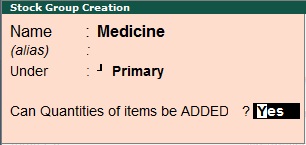
To create stock group: - G.O.T. (Gateway of Tally)--> Inventory Info--> Stock Group--> Create (Single).


To create stock item: - G.O.T. (Gateway of Tally)--> Inventory Info--> Stock Item--> Create (Single).


Now do voucher entry:

Path for voucher creation: - G.O.T. (Gateway of Tally)--> Inventory Voucher--> Press F9 (Purchase Voucher)--> Press F12 (Configuration).


You can see the VAT report as follow:-

Path for view VAT report: - G.O.T. (Gateway of Tally)--> Display--> Statutory Report--> VAT Report--> VAT Computation.

When the report do not shows, then press F12.


Now again create ledger:

Path for ledger creation: - G.O.T. (Gateway of Tally)--> Accounts Info--> Ledger--> Create (Single).


Again do voucher entry:

Path for voucher creation: - G.O.T. (Gateway of Tally)--> Inventory Voucher--> Press F8 (Sales Voucher).


See the VAT report:

Path for view VAT report: - G.O.T. (Gateway of Tally)--> Display--> Statutory Report--> VAT Report--> VAT Computation.


For more details, press “Alt + F1”.
Read More...

Sunday, 6 September 2015

T.D.S. (TAX DEDUCTED AT SOURCES)

T.D.S. (TAX DEDUCTED AT SOURCES)

T.D.S. is one of the mode of collected deduct tax. T.D.S. is deposited in treasury bank on behalf of Income Tax Department.

Buyers (corporate and non- corporate) make payment under various heads such as salary, rent, interest on securities, dividends, insurance, commission, brokerage, commission on lottery ticket, professional fees etc.
The deductive tax collected from 16/16A and 16AA is certified for the deduction of tax from the deducter.

The person whose income is Rs. 2,00,000 or more than Rs. 2,00,000 T.D.S. will be deducted 20% and whose income is less than Rs. 2,00,000 T.D.S. will not be deducted.

Deductee: - Deductee is the person who pays T.D.S.

Deducter: - Deducter is the person who deducts T.D.S.

Tan: - (Tax Deduction Account Number) is issued by the Income Tax Department through all person deductive tax at source.

Example:-

ABC Company paid salary to Raman Rs. 50,000 with deduction of T.D.S.

To maintain:-

Create a company and then activate T.D.S. as follow:-


To Activate T.D.S.: - G.O.T. (Gateway of Tally)--> Press F11 (Company Features)--> Press F3 (Statutory & Taxation).


And then create ledger:

Path for ledger creation: - G.O.T. (Gateway of Tally)--> Accounts Info--> Ledger--> Create (Single).


Now do voucher entry:

Path for voucher creation: - G.O.T. (Gateway of Tally)--> Inventory Voucher--> Press F7 (Journal Voucher).


After that, press “Alt + S” to deduct T.D.S.


Press F5 to open Payment Voucher.

Press F12 for configuration.


Again press F12 for configuration.


T.D.S. has been paid.


Read More...

Thursday, 3 September 2015

VAT RETURN OR VAT USED IN CREDIT/ DEBIT NOTE OR VAT IN GOODS RETURN

VAT RETURN OR VAT USED IN CREDIT/ DEBIT NOTE OR VAT IN GOODS RETURN

It is used for purchase and sales return under VAT. We can also adjust VAT return with purchase and sales transaction.

Working steps:-

Create a company and then activate VAT:


To Activate VAT: - G.O.T. (Gateway of Tally)--> Press F11 (Company Features)--> Press F3 (Statutory & Taxation).


And then create ledger:

Path for ledger creation: - G.O.T. (Gateway of Tally)--> Accounts Info--> Ledger--> Create (Single).


After that, create stock master as follow:

To create stock group: - G.O.T. (Gateway of Tally)à Inventory Infoà Stock Groupà Create (Single).


To create stock item: - G.O.T. (Gateway of Tally)--> Inventory Info--> Stock Item--> Create (Single).


And then do voucher entry as follow:-

Path for voucher creation: - G.O.T. (Gateway of Tally)--> Inventory Voucher--> Press F9 (Purchase Voucher).


Now activate debit and credit note:

To Activate Debit and Credit Note: - G.O.T. (Gateway of Tally)--> Press F11 (Company Features)--> Press F1 (Accounting Features).


Again do voucher entry as follow:-

Path for voucher creation: - G.O.T. (Gateway of Tally)--> Inventory Voucher--> Press Ctrl + F9 (Debit Note Voucher).


Now you can see the VAT report.

Path for view VAT report: - G.O.T. (Gateway of Tally)--> Display--> Statutory Report--> VAT Report--> VAT Computation.


Press “Alt + F1” for more details.

Read More...

Wednesday, 2 September 2015

OPENING STOCK CLAIM

OPENING STOCK CLAIM

VAT is applicable after Sales tax paid on unsold stock. If sales tax is more than VAT tax then the trader claim to VAT officer within 30 days of implementation of the act. The assessing officer verifies it and the credit may be adjusted in six months.

Working steps:-

Create a company and then activate VAT as follow:


To Activate VAT: - G.O.T. (Gateway of Tally)--> Press F11 (Company Features)--> Press F3 (Statutory & Taxation).


Create ledger as follow:-

Path for ledger creation: - G.O.T. (Gateway of Tally)--> Accounts Info--> Ledger--> Create (Single).


Here, press F11 and then F1.


Now do voucher entry:-

Path for voucher creation: - G.O.T. (Gateway of Tally)--> Accounting Voucher--> Press F7 (Journal Voucher).


The extra tax which is paid to the government is divided into six parts due in the entry passed below:


Now alter in voucher types:-

Path for Alteration in Voucher Types:- G.O.T. (Gateway of Tally)--> Accounts Info--> Voucher Types--> Alter--> Journal.


Again do voucher entry:-

Path for voucher creation: - G.O.T. (Gateway of Tally)--> Accounting Voucher--> Press F7 (Journal Voucher).


You can see the VAT report.
Read More...

Tuesday, 1 September 2015

VAT EXEMPTED

VAT EXEMPTED

Natural and unprocessed goods are called exempted goods. These goods are totally tax free. Each state government allows commodities categories of exempted goods.

Working steps:-

Create a company and then activate VAT as follow:


To Activate VAT: - G.O.T. (Gateway of Tally)--> Press F11 (Company Features)--> Press F3 (Statutory & Taxation).


Now create ledger as follow:-

Path for ledger creation: - G.O.T. (Gateway of Tally)--> Accounts Info--> Ledger--> Create (Single).


After that create stock master as follow:-

To Create Stock Group: - G.O.T. (Gateway of Tally)--> Inventory Info--> Stock Group--> Create (Single).


To Create Stock Item: - G.O.T. (Gateway of Tally)--> Inventory Info--> Stock Item--> Create (Single).


And then do voucher entry as follow:-

Path for voucher creation: - G.O.T. (Gateway of Tally)--> Inventory Voucher--> Press F9 (Purchase Voucher).


Press F8 to Open Sales Voucher.


Now you can see the VAT report as follow:-

Path for view VAT report: - G.O.T. (Gateway of Tally)--> Display-->Statutory Report -->VAT Report--> VAT Computation.


Read More...