Monday, 24 August 2015

VAT IN INVENTORY VOUCHER

VAT IN INVENTORY VOUCHER

To maintain VAT in Inventory Voucher follow these steps.

To maintain:-


Create a company and then activate VAT as follow:-


To Activate VAT: - G.O.T. (Gateway of Tally)--> Press F11 (Company Features)--> Press F3 (Statutory & Taxation).


Create ledger as follow:-

Path for ledger creation: - G.O.T. (Gateway of Tally)--> Accounts Info--> Ledger--> Create (Single).


After that create stock master as follow:-

To Create Stock Group: - G.O.T. (Gateway of Tally)--> Inventory Info--> Stock Group--> Create.


To Create Stock Item: - G.O.T. (Gateway of Tally)--> Inventory Info--> Stock Item--> Create.


Now do voucher entry as follow:-

Path for voucher creation: - G.O.T. (Gateway of Tally)--> Inventory Voucher--> Press F9 (Purchase Voucher).


Press F8 to open Sales Voucher.


Now view the VAT computation.

Path for view VAT Computation: -G.O.T. (Gateway of Tally)--> Display--> Statutory Report--> VAT Report--> VAT Computation.


Press “Alt + F1” for details.

Read More...

Friday, 21 August 2015

VAT IN ACCOUNTING VOUCHER

VAT IN ACCOUNTING VOUCHER

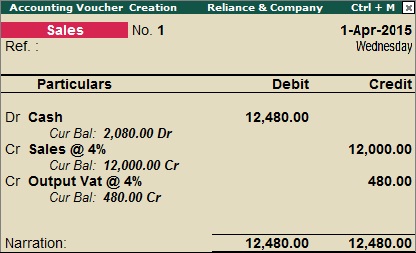
VAT is maintained in both Accounting and Inventory mode. If you want to maintain VAT in Accounting Voucher then follow the steps given below.

To maintain:-

Create a company and then activate VAT as follow:-


To Activate VAT: - G.O.T. (Gateway of Tally)--> Press F11 (Company Features)--> Press F3 (Statutory & Taxation).


After that press “enter”.


Again press “enter” many times.


Accept it by pressing “y” or “enter” key.

Create ledger as follow:-

Path for ledger creation: - G.O.T. (Gateway of Tally)--> Accounts Info--> Ledger--> Create (Single).


Now do voucher entry as follow:-

Path for voucher creation: - G.O.T. (Gateway of Tally)--> Accounting Voucher--> Press F9 (Purchase Voucher).


Press F8 to open Sales Voucher.


Now you can see VAT computation follow:-

Path for view VAT Computation: - G.O.T. (Gateway of Tally)--> Display--> Statutory Report--> VAT Report--> VAT Computation.


For more information, press “Alt + F1”.
Read More...

Thursday, 20 August 2015

TAXATION

TAXATION

Acts of taxing is called taxation. In taxation we will study about following taxes:-

VAT: - Value Added Tax is called VAT. It is based on value addition to the goods. It states level tax charge on purchase/ sale of goods. VAT is paid by producer, manufacturer, retailer or any other. It also gives benefit to common man, businessman and also to government. France is the first country who adapted VAT in 1952. In India VAT was started from 1984 but due to some political reason it was not applicable at that time. VAT is applicable in Haryana in 2005 and Uttar Pradesh in 2008 till today.

Basic terms used under VAT:-

    1)    Input VAT: - The VAT which we pay at the time of purchase is called Input VAT.

    2)    Output VAT: - The VAT which is charged at the time of sale is called Output VAT.

    3)    VAT Payable: - The VAT which is paid to government is called VAT Payable.


    4)    VAT Refundable: - When VAT is returned by the government then it is called VAT Refundable.


    5)    VAT TIN (Tax Identification Number):- When a dealer registers himself under VAT then the government issues eleven alphabetical or numerical digit to the dealer is called VAT TIN.

    6)    VAT Rate: - Government defines four types of VAT rate in Uttar Pradesh:-

                i.            VAT @ 1% :- This VAT rate is specified for gold, silver, stone, etc.

   ii.            VAT @ 4% :- The large number of goods (270) of basic necessity such as medicine, agricultural products, raw material, etc. are declared under this VAT rate.

  iii.            VAT @ 12.5% :- All types of finished goods such as Parle-G biscuit, refined oil, etc. comes under this VAT rate. It consists 234 items.

  iv.            VAT Exempt : - All the natural products that are free from tax come under this VAT rate.


Types of dealer:-


     a)    Registered Dealer: - The dealer whose gross turnover is more than 5 lakh, comes under Registered Dealer. Registered dealer are of two types:-

                              i.            Regular Dealer: - The dealer whose gross turnover is more than 5 lakh, then he comes under Regular Dealer.

                             ii.           Composit Dealer: - The dealer whose gross turnover is in between 5 to 50 lakh, comes under Composit Dealer.


     b)    Unregistered Dealer: - The dealer whose gross turnover is not more than 5 lakh, comes under Unregistered Dealer.
Read More...

Thursday, 6 August 2015

SCENARIO MANAGEMENT

SCENARIO MANAGEMENT

When we want to see the effect of our non - accounting voucher or profit and loss and balance sheet then we use after creating scenario we get a duplicate copy of our profit and loss and balance sheet.

Example:-

ABC company purchase a Computer for Rs. 25,000 on 1-Apr-2014 and the trader wants to know cost of Computer on 31-Mar-2015. He charges depreciation @ 10% on it.
Maintain this transaction.

To maintain:-

Create a company and then activate “budget & control and reversing journal & optional” as follow:-


To Activate Budget & Control and Reversing Journal & Optional: - G.O.T. (Gateway of Tally)--> Press F11 (Company Features)--> Press F1 (Accounting Features).


Now create scenario as follow:-

Path for Scenario creation: - G.O.T. (Gateway of Tally)--> Accounts Info--> Scenario--> Create.


After that create ledger as follow:-

Path for ledger creation: - G.O.T. (Gateway of Tally)--> Accounts Info--> Ledger--> Create (Single).


Now do voucher entry:-

Path for voucher creation: - G.O.T. (Gateway of Tally)--> Inventory Voucher--> Press F7 (Journal Voucher).


After that press F10 to open Reversing & Journal Voucher.

Press F2 to change the date and then do Reversing & Journal Voucher entry.


Now you can see the balance sheet as follow:-

Path for View Balance Sheet: - G.O.T. (Gateway of Tally)--> Balance Sheet--> Press “Alt + C” --> Duplicate Balance Sheet.


Read More...

Wednesday, 5 August 2015

INVOICING

INVOICING


It is like a bill which contain all information about goods or stock item it also contains information about customer, delivery note, made of payment, delivery place etc.

Example:-

In invoicing, all the details of customer and goods are recorded such as buyer’s name, name of goods, order detail, export detail, etc. as done in this example.

To maintain:-

First of all create a company and then activate “supplementary details and export shipping details” as follow:-


To Activate Supplementary Details and Export Shipping Details: - G.O.T. (Gateway of Tally)--> Inventory Voucher--> Press F8 (Sales Voucher)--> Press F12 (Configuration).


Now create stock master as follow:-

To Create Stock Group: - G.O.T. (Gateway of Tally)--> Inventory Info--> Stock Group--> Create.


To Create Stock Item: - G.O.T. (Gateway of Tally)--> Inventory Info--> Stock Item--> Create.


And then create ledger as follow:-

Path for ledger creation: - G.O.T. (Gateway of Tally)--> Accounts Info--> Ledger--> Create (Single).


Now do sales voucher entry as follow:-

Path for voucher creation: - G.O.T. (Gateway of Tally)--> Inventory Voucher--> Press F8 (Sales Voucher).


Accept the voucher.

Path for print the invoice: - G.O.T. (Gateway of Tally)--> Press DD (Day Book).

Press “Alt + P” to take pint out of voucher. Now using printer we can take print out of invoice.


Press “Y” or “enter” to print.

Note: - You should press “Alt + P” in Day Book.
Read More...